
Go to the LogPoint login page.
Log in using your preferred authentication option. After the successful login, the Duo Authentication panel opens.
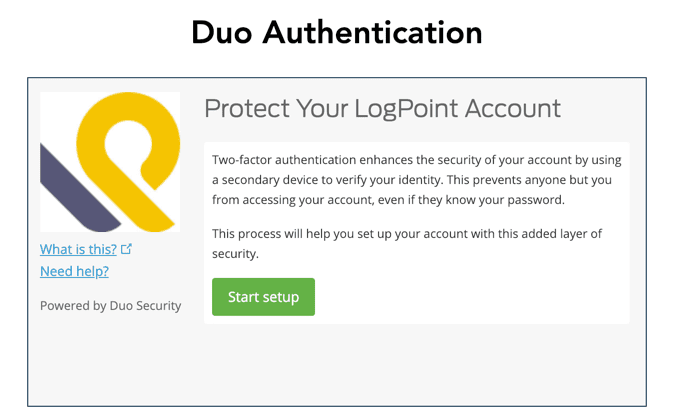
Duo Authentication Panel
Click Start setup.
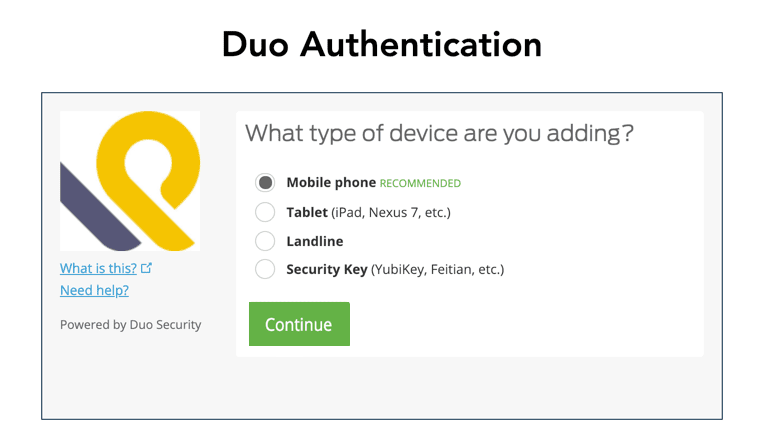
Adding a Device
Select a device for two-factor authentication. We recommend you to select the Mobile phone option.
Note
You can also add the following device types to verify the authentication:
Tablet: Use this option if you are installing the Duo Mobile application on your tablet. Duo Security sends you an One-Time Password (OTP) in your device.
Landline: Use this option if you are using a landline telephone for verification. Duo calls the number to verify your identification.
Security Key: Use this option to enroll your security key.
Click Continue.
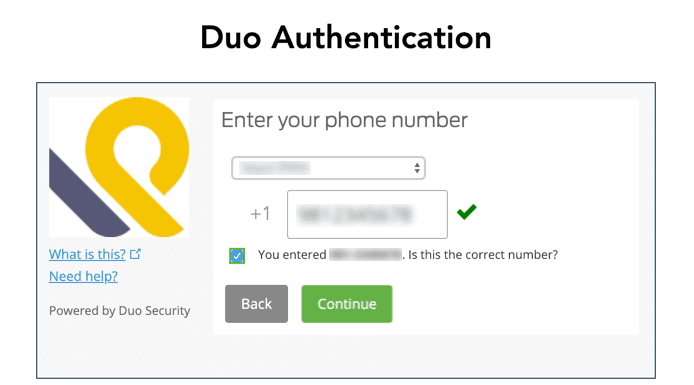
Entering Phone Number
Select a country.
Enter a phone number.
Select the Is this the correct number option to verify the number.
Click Continue.
Select the Type of Phone.
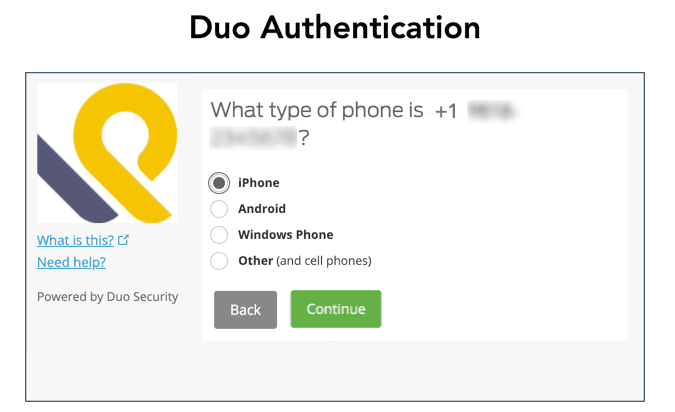
Type of Phone
Click Continue.
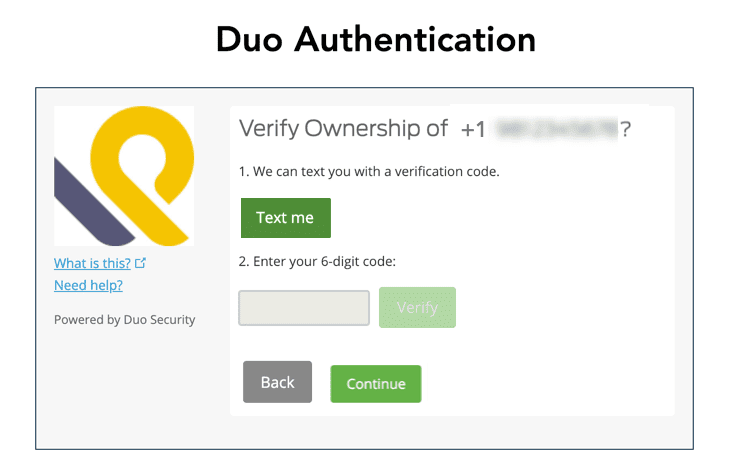
Verifying Ownership
Click Text me to receive a 6-digit code from Duo Security to verify the ownership of the phone number you have entered.
Enter your 6-digit code you have received from Duo Security via text message.
Click Continue.

Continue to Login
Select Ask me to choose an authentication method in the When I log in option.
Click Continue to Login.
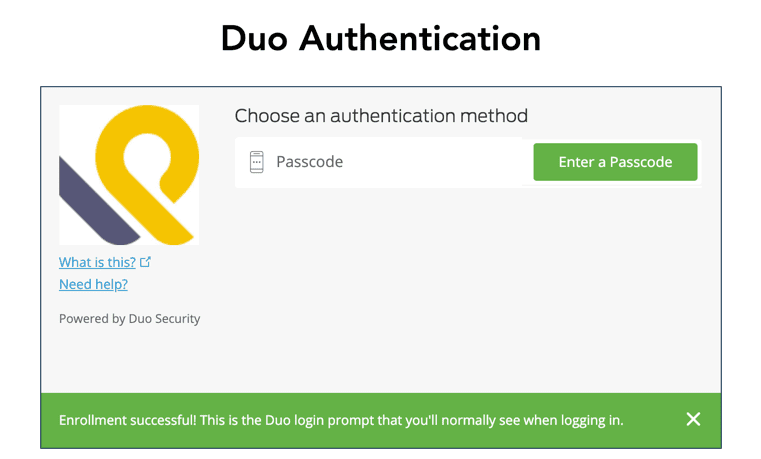
Entering Passcode
Click Enter a Passcode.
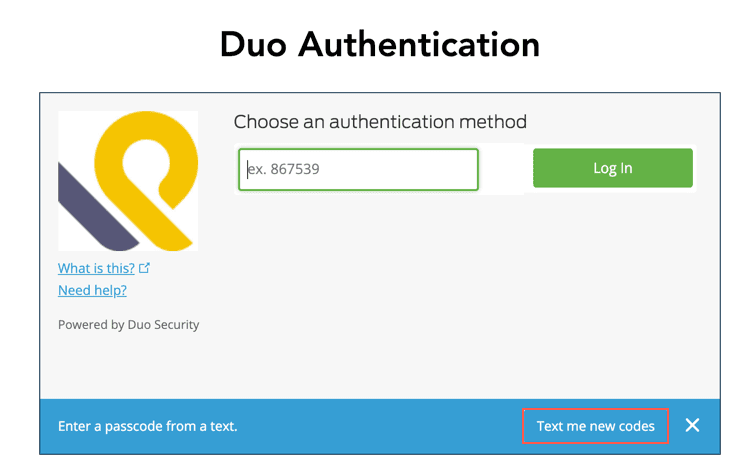
Duo Authentication Panel
Click Text me new codes to receive an OTP from Duo Security.
Enter the OTP you received from Duo Security via text message as the passcode.
Click Log In.